
Connect the app
You connect the app once, with a Hub API key. This page walks through it for the sandbox first, then for the live Hub. You need an invitation to the app first: see How to get access.
What you need
You need | Why |
|---|---|
An invitation to the app, accepted in your Zapier account | |
A developer account on this site, with a sandbox | |
A test key for that sandbox, made for Zapier alone | |
Later: a live key from the Developer page of the Hub |
Give Zapier its own key, named for it (for example
Zapier). The hourly call limit belongs to the key, so a Zap that loops cannot use up the limit of your ERP or any other system, and you can switch Zapier off by itself.Step 1: create a sandbox
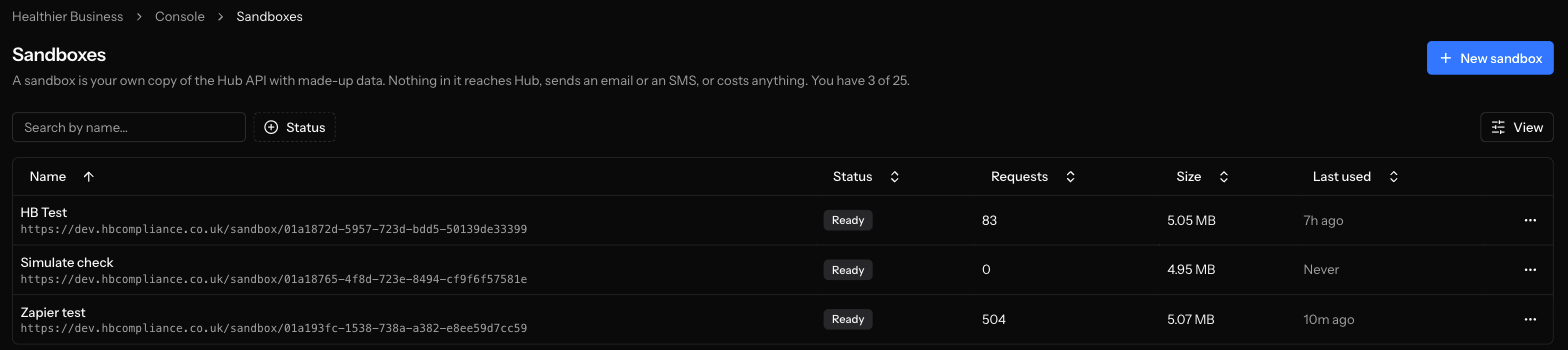
Open Sandboxes in the developer console
Sign in to the developer console and choose Sandboxes. The page lists the sandboxes you have and how many more you may make.
Choose New sandbox and give it a name
Choose New sandbox, type a name you will recognise, such as
Zapier test, and choose Create sandbox. It starts with made-up candidates, bookings, requests and credits in every portal. Nothing in it reaches the live Hub, sends an email or an SMS, or costs anything.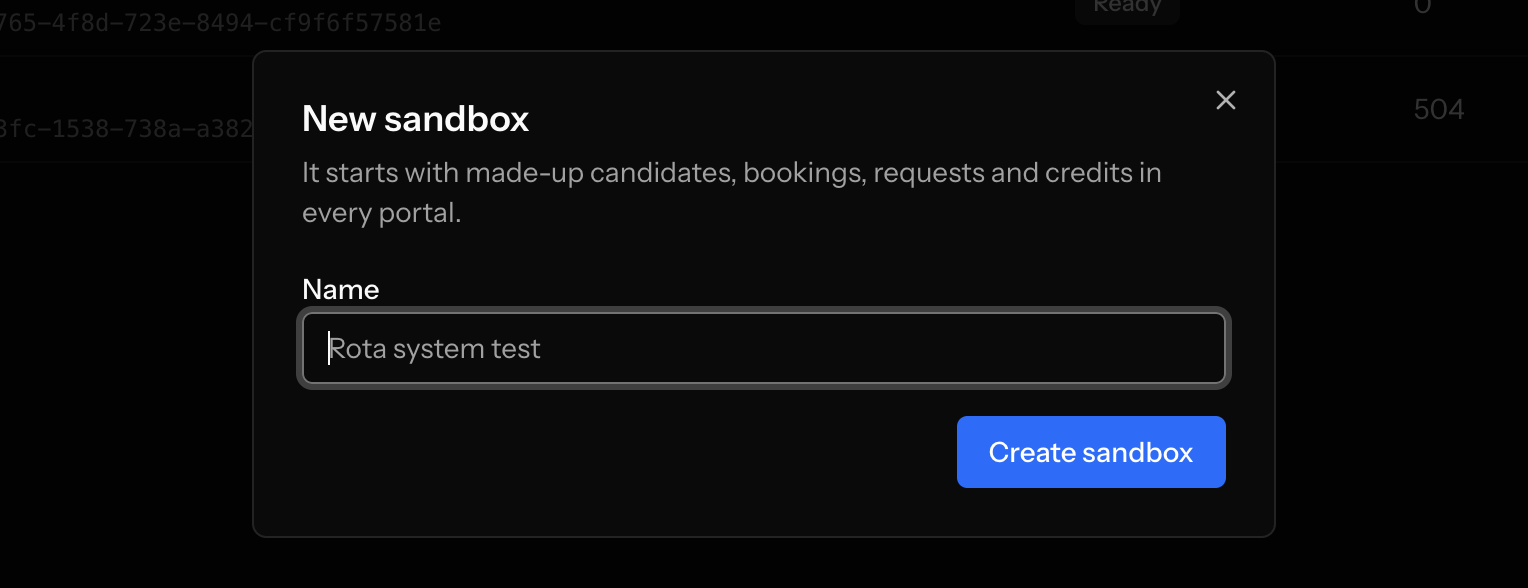
Step 2: create a test key with the right scopes
Open API keys and choose the sandbox
Choose API keys and pick your sandbox in the picker at the top right. Keys belong to one sandbox.
Choose New key, name it and set a limit
Name it
Zapier. Calls per hour can stay at 1,000 for a first test. Set an Expires date if you can: a key that expires cannot be forgotten.Choose Custom access and tick only what the Zaps need
Do not choose Full access: the app refuses a key with every scope (see Keys the app refuses). Choose Custom. The picker lists every portal as a group with a Read and a Write column.
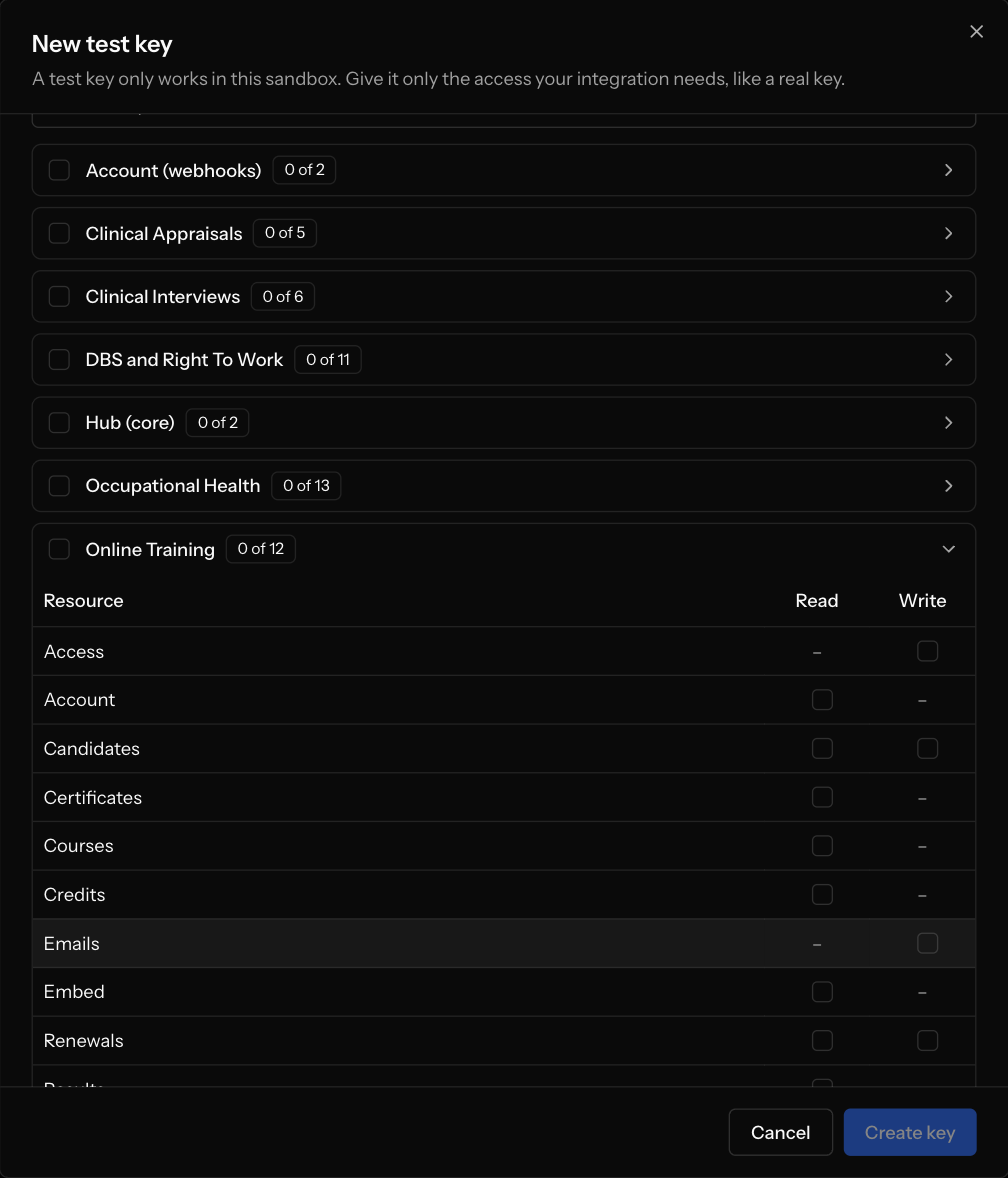
Use the table in Scopes by step family to decide. A good first key for the recipes on this site has:
Account (webhooks): the webhook scope the app uses to register its own subscriptions (see the note below), needed by every instant trigger.
Hub (core): Candidates, Read and Write.
Online Training: Candidates (Read), Access (Write), Credits (Read), Courses (Read) and Renewals (Read).
Practical Training: Bookings (Read) and Catalogue (Read), for recipe 4.
Do not tick anything under Occupational Health or DBS and Right To Work.
The webhook scope: own, write or read and write
The best scope for Zapier is
account:webhooks:own. It lets the key create webhook endpoints and then list, change and delete only the endpoints that key created, so Zapier cannot see or break the endpoints of your ERP. Where your picker lists it under Account (webhooks), tick it. If your picker shows only Read and Write for webhooks, tick Write: the app accepts account:webhooks:write too, but a key with it can manage every webhook endpoint of the account, so give that key to Zapier only. See Webhooks.Choose Create key and copy the key
The key is shown once, in a dialog called Copy it now. Copy it with the button and keep it somewhere private until you paste it into Zapier. A sandbox key starts with
hbk_test_. Do not paste a key into a chat, an email or a ticket. If you lose it, roll the key to get a new value.Step 3: the address of the sandbox
You do not type an address in Zapier. The app already knows both:
Environment | What the app calls | Key starts |
|---|---|---|
Sandbox | https://dev.hbcompliance.co.uk/sandbox/api/v2 | hbk_test_ |
Live | https://hub.hbcompliance.co.uk/api/v2 | hbk_ |
The sandbox address is the by key form: the key you exchange tells the sandbox which of your sandboxes to use, so there is nothing else to configure. If you call the sandbox yourself, with curl or Postman, you may also use the form that names the sandbox:
https://dev.hbcompliance.co.uk/sandbox/ followed by the sandbox id and /api/v2. See Sandboxes for both forms. The app's token is only ever sent to the address of the environment you chose, never to any other host.Step 4: connect in Zapier
Add the app to a Zap or to My Apps
In the Zap editor choose Healthier Business Compliance Hub as the app of any step, or open My apps in Zapier and add a connection from there. Under Account choose Sign in (or Connect a new account).
Fill in the pop-up window
Zapier opens the connect form in a pop-up window. Allow pop-ups for zapier.com if your browser blocks it. The pop-up is not part of the Zap editor page, so there is no screenshot of it here; the drawing below shows its two fields.
The first sentence below describes the diagram. It shows the Environment choice, the password field for the Hub API key and the button that sends them.
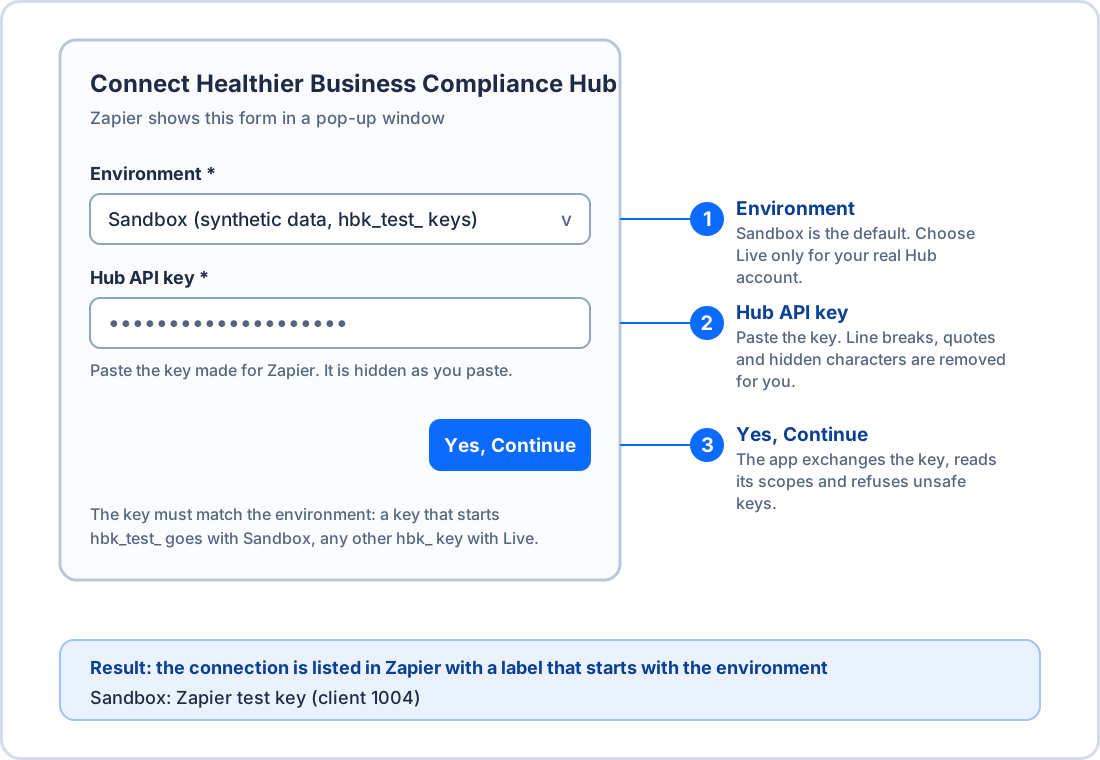
- Environment: Sandbox (the default) or Live. Leave it on Sandbox while you test.
- Hub API key: paste the key. It is a password field, so Zapier hides it and keeps only a masked copy in its logs. Line breaks, quotes and invisible characters that come with a paste are removed for you.
- Choose Yes, Continue.
Check the label
The app exchanges the key for a Hub access token, reads the key's name and scopes, and calls the Hub once more to build the label. If it works, the connection appears in Zapier with a label that starts with the environment, then the key's name and the Hub client number:
Sandbox: Zapier test key (client 1004)For a live key the label starts with
Live:. When a Zap shows the wrong label, you are connected to the wrong environment or the wrong key: stop and check before you turn the Zap on.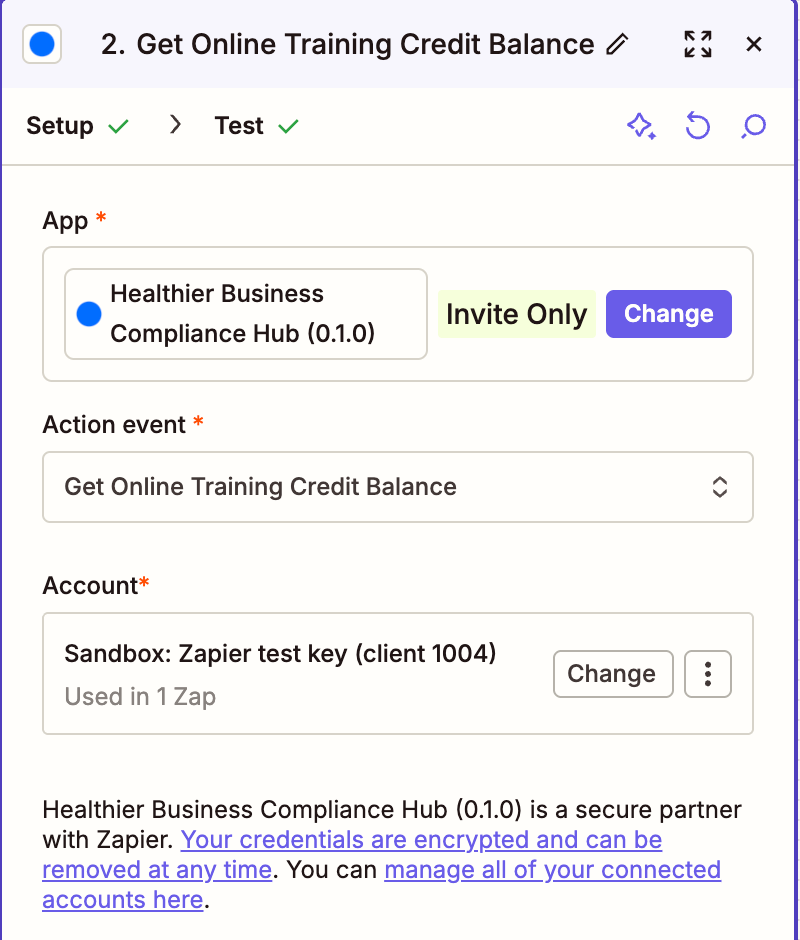
What the app checks when you connect
Before it sends anything to the Hub the app checks the key against the environment you chose. After the exchange it checks the key's scopes. These are the real messages you may see in the form, and what to do:
Message | What happened | What to do |
|---|---|---|
The API key does not look right (… characters, …). Keys start with "hbk_" (sandbox keys with "hbk_test_") and have no spaces. Copy it again from the Hub Developer page. | The pasted text is not shaped like a key. The part in brackets tells you its length and whether it has a space, a character that is not plain text, or does not start with hbk_. The key itself is never repeated. | Copy the key again, with the copy button, and paste it into the empty field. Do not type it. |
You chose Sandbox but pasted a live key (it starts with hbk_). Pick the Live environment, or use a sandbox key that starts with hbk_test_. | The key prefix does not match the environment. Nothing was sent. | Change Environment or use the right key. |
You chose Live but pasted a sandbox key (it starts with hbk_test_). Pick the Sandbox environment, or use a live key. | The same, the other way round. | Change Environment or use the right key. |
Hub did not accept this API key (invalid_credentials). It may have been copied incompletely, regenerated or deleted: create a key on the Hub Developer page and paste it again. | The Hub does not know the key, or it was switched off. | Create a new key. In a sandbox, check you made it in the same sandbox you intend to use. |
This key can read health or criminal-record data. Create a key without Occupational Health and DBS and Right To Work scopes for Zapier. | The key holds *, or a scope of Occupational Health or DBS and Right To Work. | |
This key holds no scope the Zapier app can use. Create a key on the Hub Developer page with account:webhooks:own (needed for every instant trigger) and the read scopes of the portals you want to use, for example hub:candidates:read, then connect again. | The key has none of the scopes the app uses. | Make a key with the scopes your Zaps need. |
Hub answered the key exchange without an access token. Try again; if it keeps happening, quote this to support. | An unexpected answer from the Hub. | Try again, then contact support. |
Keys the app refuses
The app refuses to connect, with the message This key can read health or criminal-record data, when the key holds any of these:
the full access scope
* (the Full access choice in the console);any Occupational Health scope, or the whole portal (
occupational-health:*);any DBS and Right To Work scope, or the whole portal (
dbs-rtw:*).The reason is Zapier's own data terms. Zapier says its service is not designed for health data or criminal records and asks its customers not to send any through it. Such a record tied to a named person is sensitive even without a name. Refusing the key means nobody can route that data through Zapier by mistake, even with a key that was made too broad. If you need Occupational Health automation, use the Hub API with your own server, where your own data protection assessment applies. See Data protection.
A key with a whole-portal scope such as
online-training:* is accepted, but it is broader than a Zap needs. Prefer individual scopes.Scopes by step family
A step checks the key's scopes before it calls the Hub, and says in plain words which one is missing. Every instant trigger also needs the webhook scope and at least one scope of the portal it listens to. A write scope also grants the matching read scope.
Portal | Read scopes (searches, balances, dropdowns, Include details) | Write scopes (actions) |
|---|---|---|
Hub (core) | hub:candidates:read | hub:candidates:write |
Online Training | online-training:candidates:read, online-training:certificates:read, online-training:courses:read, online-training:credits:read, online-training:renewals:read, online-training:results:read | online-training:access:write, online-training:candidates:write, online-training:emails:write, online-training:renewals:write |
Practical Training | practical-training:account:read, practical-training:bookings:read, practical-training:catalogue:read, practical-training:credits:read | practical-training:bookings:write, practical-training:holds:write |
Registration Monitoring | registration-monitoring:alerts:read, registration-monitoring:verification:read, registration-monitoring:workers:read | registration-monitoring:alerts:write, registration-monitoring:verification:write, registration-monitoring:workers:write |
References | references:requests:read, references:templates:read | references:requests:write |
Virtual BLS | virtual-bls-training:account:read, virtual-bls-training:bookings:read, virtual-bls-training:catalogue:read, virtual-bls-training:credits:read | virtual-bls-training:bookings:write, virtual-bls-training:holds:write |
Clinical Interviews | clinical-interviews:bookings:read, clinical-interviews:catalogue:read, clinical-interviews:credits:read | clinical-interviews:bookings:write, clinical-interviews:holds:write |
Clinical Appraisals | clinical-appraisals:bookings:read, clinical-appraisals:catalogue:read, clinical-appraisals:credits:read | clinical-appraisals:bookings:write |
Training Verification | training-verification:read | training-verification:write |
Notes:
Dropdowns and Find buttons (courses, locations, sessions, interview and appraisal types, templates, candidates) read from the portal and need the matching read scope. The app fills them with up to 100 rows a page and keeps them for about a minute.
Include details on a trigger looks the record up, so it needs the read scope shown for that portal (for example
online-training:candidates:read).Booking steps that hold a place first also need the portal's
holds:write scope.What to do when a key stops working
Situation | What the Zap shows | What to do |
|---|---|---|
You deleted, switched off or rolled the key, or it expired | The Hub API key is switched off, expired or was regenerated. Create or switch on a key on the Hub Developer page and reconnect. | Make or switch on a key. In Zapier, reconnect the account under My apps and paste the new key. Zaps start again after reconnecting. |
The key has an IP allowlist | The key has an IP allowlist and Zapier's address is not on it. | Remove the allowlist. Zapier's addresses are shared and wide. If you must keep one, add Zapier's two static ranges (44.214.195.64/28 and 18.246.81.208/28), which Zapier offers on paid accounts only, and check them against Zapier's page now and then. |
The key lacks a scope | This step needs the scope … Add it to the key on the Hub Developer page, then reconnect. | Add the scope. A scope added to an existing key reaches the connection when you reconnect, because the app reads the scope list when it connects. |
Go live
Do this only after the same Zaps worked in the sandbox.
- In the Hub, open the Developer page and create a live key for Zapier. Give it only the scopes the Zaps use and an expiry date if you can. A live key starts with
hbk_and is shown once.
- In Zapier, connect a second account for the app with Environment set to Live and the live key. Do not edit the sandbox connection: keep it for testing.
- In each Zap, open the steps and change Account to the live connection. Test each step again. Look at the label: it must start with
Live:.
- Before you turn on a Zap that starts access, approves a renewal or requests a verification, set the daily caps for the key in the Hub and set Maximum Credits on the step. See Actions.
- Turn the Zap on and watch the first runs in Zap history.
Your live key works once your Hub account's API access is open to you. If calls to the live Hub are refused while the sandbox works, ask support whether your account is enabled for the API.
Switch Zapier off or take access away
Stop everything at once: delete or switch off the key on the Developer page. All tokens made from it stop working immediately and every step fails with an authentication message. Rolling the key does the same and gives you a new value.
Stop only the triggers: delete the webhook endpoints named
Zapier: … on the Webhooks page of the console, or the Developer page of the Hub. Events stop at once. The Zap itself stays.Removing the connection in Zapier is not enough. It forgets the key in Zapier, but the key stays valid in the Hub. Delete the key too.
Turning a Zap off removes its own webhook endpoint. If the removal ever fails, the Hub switches the endpoint off when Zapier answers
410 Gone for a Zap that no longer exists, and in any case after 25 failed deliveries in a row.Was this page helpful?