
Recipes
Each recipe below is a complete Zap. They use only built-in, general kinds of app (a team chat app, a spreadsheet app, a form app and an email app), and you can swap in the one you use. Every one is meant to be built in the Sandbox first. Where a recipe has been run in a real Zap, it says so.
| Recipe | Trigger | Action | Steps | Scopes the key needs |
|---|---|---|---|---|---|
1 | Message when training access starts | Online Training Access Started (instant) | A message in your chat app | 2 | Webhook scope, any Online Training scope, online-training:candidates:read for details |
2 | A spreadsheet row for each new candidate | New Candidate (polling) | A new spreadsheet row | 2 | hub:candidates:read |
3 | Add a candidate from a form and start their training | A form app | Find or Create Candidate, then Start Training Access | 3 | hub:candidates:read, hub:candidates:write, online-training:access:write |
4 | Tell the team about a new practical training booking | New Practical Training Booking (instant) | A message in your chat app or an email | 2 | Webhook scope, practical-training:bookings:read |
On Zapier's free plan a Zap has two steps (a trigger and one action), so recipes 1, 2 and 4 fit and recipe 3 needs a paid plan. Plans change, so check Zapier.
Recipe 1: message when training access starts
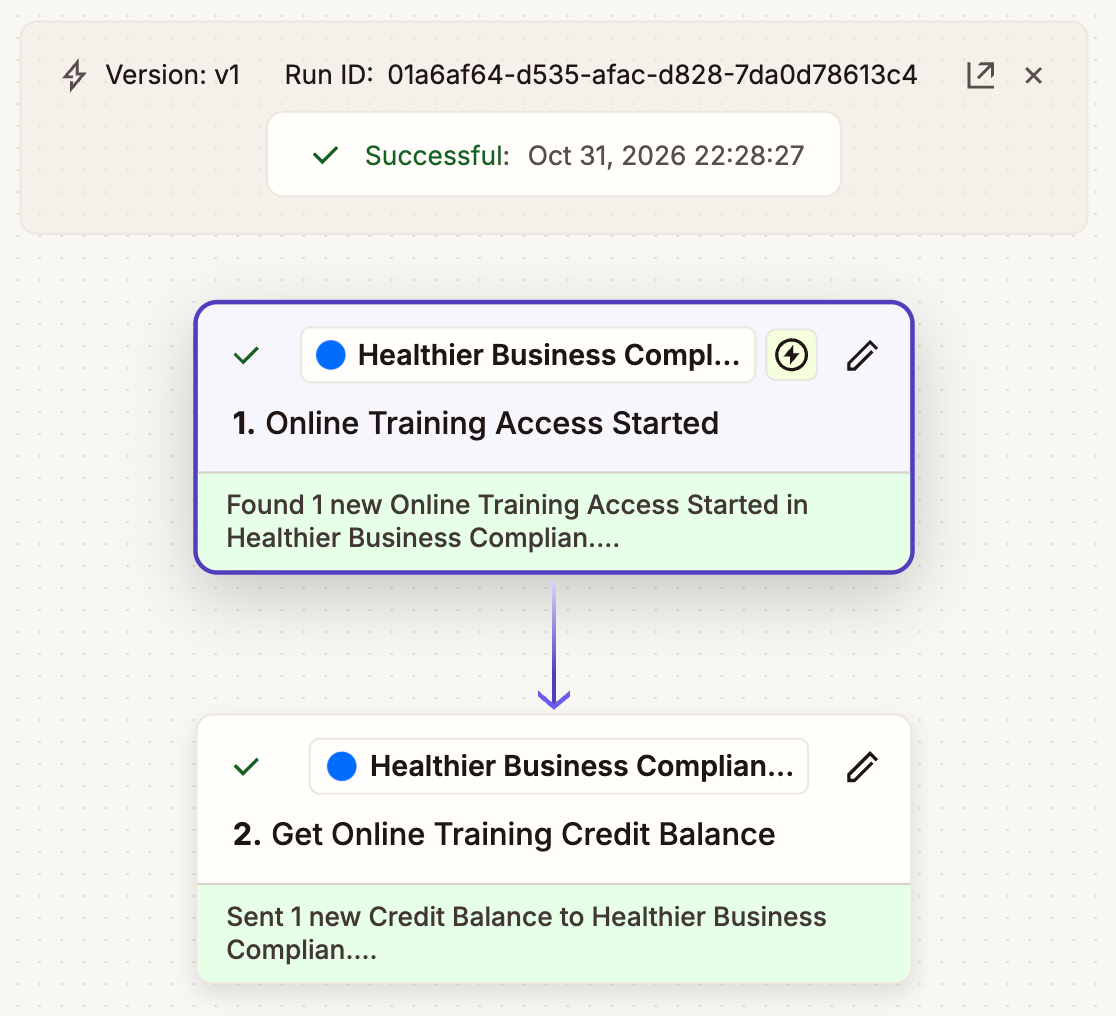
Posts a message to your chat app each time a candidate's access to online training is switched on. This is the one recipe that has been run in a real Zap, in the sandbox (with the Get Online Training Credit Balance action as the second step in place of a message).
Create the Zap and choose the trigger
In Zapier choose Create, then Zaps. For the trigger, search for Healthier Business Compliance Hub (it carries the label Invite Only). Under Trigger event choose Online Training Access Started. Under Account choose your Sandbox connection and check that its label starts with
Sandbox:. Choose Continue.Decide on Include details
Under Configure, leave Include details empty if the message only needs the candidate reference, the source and the groups. Choose True if the message should show the candidate's name: then each run does one more lookup and the key needs
online-training:candidates:read. Choose Continue.Test the trigger
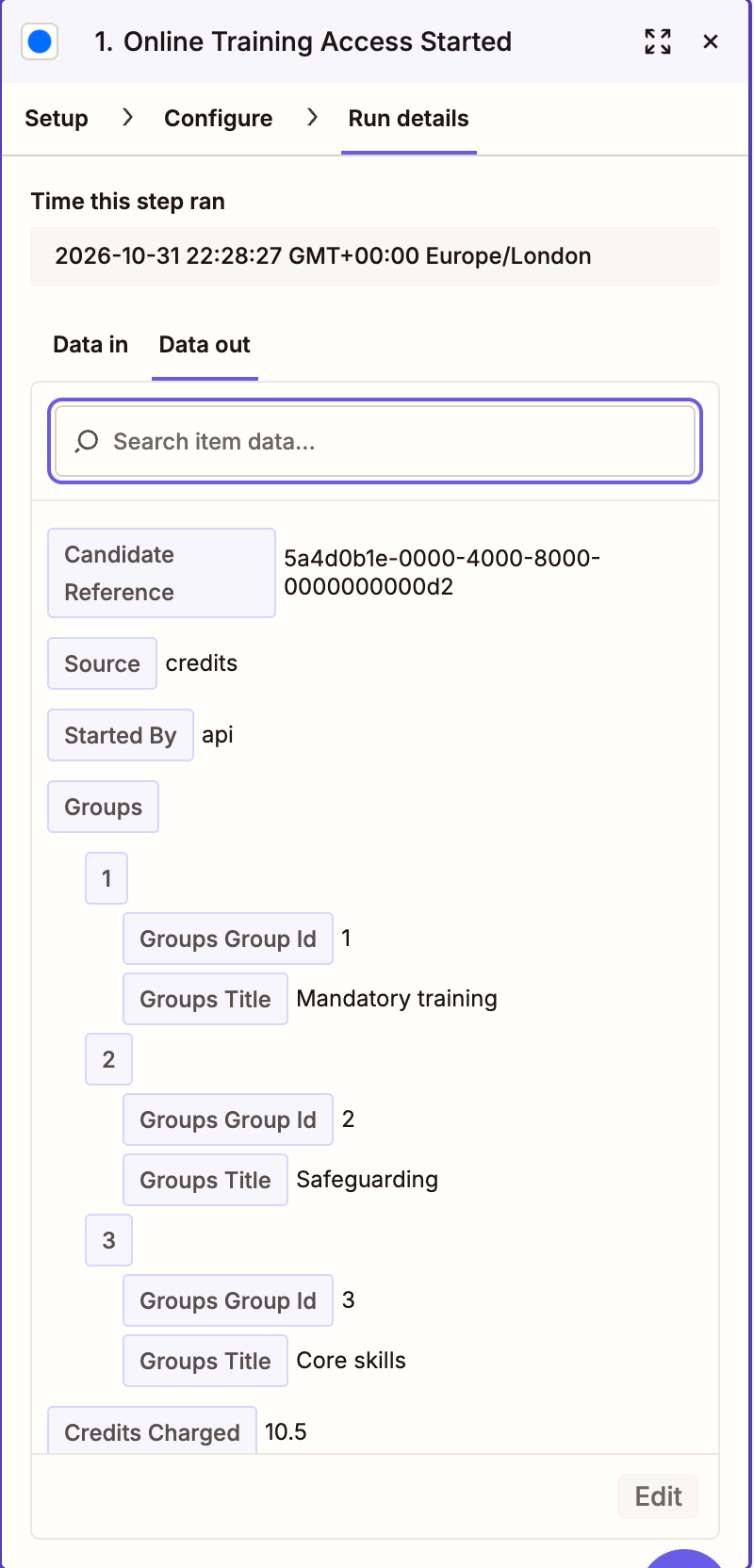
Choose Test trigger. Zapier shows an example from the Hub's specification. To see a real event, start access for a sandbox candidate: in the console, use Simulate or call the Start Training Access step from another Zap. Zapier will then show Candidate Reference, Source, Started By, Groups, Credits Charged, Access Months, Starts At, Expires At and Payment ID.
Add the action
Choose the + below the trigger and pick your chat app, for example Send Channel Message. Connect that app if Zapier asks. In the message, insert fields from step 1 by choosing them from the list: for example Training access started for candidate followed by Candidate Reference, then Source: and Source, and Credits charged: and Credits Charged. Choose a channel that is private to your team. A candidate reference is an id, not a name.
Test the action and publish
Choose Test step to send the message. When it looks right, choose Publish and turn the Zap on. Turning it on registers one webhook endpoint in the Hub (you can see it on the Webhooks page, named
Zapier: Online Training Access Started …).Look at the run
In Zap history, a successful run shows a green tick. Open it to see what each step received and sent.
Recipe 2: a spreadsheet row for each new candidate
Adds a row to a spreadsheet for every new candidate. The trigger polls: it checks the Hub on Zapier's schedule rather than waiting for the Hub to call. It has not yet been run in a real Zap.
Choose the trigger
Choose Healthier Business Compliance Hub as the trigger app, New Candidate as the event and your Sandbox account. The key needs
hub:candidates:read.Test the trigger
Choose Test trigger. Zapier shows up to three of the newest candidates (the first page of the Hub's list, newest first). The fields are Candidate Reference (the Hub's id), First Name, Last Name, Name, Email, Roles, a second Candidate Reference (your own reference, if you set one), Compliance Status, Is Active, Next Expiry Date, Added At and Updated At. A candidate's phone number and compliance officer are never in it.
Add the spreadsheet action
Choose your spreadsheet app and the action that creates a row. Choose the spreadsheet and the sheet, make a header row first (for example Reference, Name, Email, Roles, Status, Next expiry, Added), and map each column to the matching field of step 1. Test the step.
Publish
Choose Publish. From now on each check adds a row for each candidate Zapier has not seen before. Zapier uses the candidate reference to tell them apart, so a candidate is not added twice.
How often it runs. Zapier decides, by plan: about every 15 minutes on the free plan and as often as every minute on some paid plans. Each check is one call against the key's hourly limit (1,000 by default). Give this Zap its own key if you use a short interval. The first run does not add a row for candidates that already existed when you turned the Zap on.
Personal data. The row holds the candidate's name and email in your spreadsheet. Keep the sheet as private as the Hub.
Recipe 3: add a candidate from a form and start their training
When someone sends a form, the Zap finds them in the Hub by email, adds them if they are not there, and starts their training access with a cap on the credits it may spend. It has three steps and has not yet been run in a real Zap. In the sandbox it spends made-up credits and sends no email.
Choose the form trigger
Choose your form app and its new response trigger. Make sure the form asks for a first name, a last name and an email address. Test the trigger so Zapier has a sample.
Add Find or Create Candidate
Add an action step, choose Healthier Business Compliance Hub and Find Candidate. Search by Search Text, mapped to the email field of the form. Turn on the choice to create the record if it does not exist, and map First Name, Last Name and Email for the create. The key needs
hub:candidates:read and hub:candidates:write. Test it: the result is the candidate with a Candidate Reference whether they were found or created.In a sandbox no activation email is sent. On the live Hub a new candidate is emailed an activation link unless you set Active to No.
Add Start Training Access, with a ceiling
Add the action Start Training Access [Spends credits]. Fill in:
Candidate: map Candidate Reference from step 2.
Maximum Credits: the most you accept this one start to cost, for example
12. The step stops without charging anything if the live price is higher, and it needs a value (0 lets only free starts through).I understand this spends credits or creates a payment link: tick it.
Leave Course Groups empty to start every group that needs access now, or give group numbers from Find Training Access.
Leave Include Payment Link unticked unless you need the link for a candidate-pays group.
The key needs
online-training:access:write. Before you turn this Zap on, set the daily caps for the key in the Hub.Test, then publish
Choose Test step. In the sandbox you see Outcome, Credits Charged, Balance After and the groups started. If the price is above your maximum, the step shows The price changed above your maximum… and nothing is charged: raise the number if you accept it.
Because the step is safe to repeat, if Zapier runs it again with the same inputs within 24 hours the Hub returns the first result (Replayed From an Earlier Identical Run is true) and charges nothing the second time.
Recipe 4: tell the team about a new practical training booking
Sends your team a message or an email whenever a practical training booking is created. It has not yet been run in a real Zap, but the trigger was exercised against the sandbox (subscribe and unsubscribe, with a real delivery).
Choose the trigger
Choose Healthier Business Compliance Hub, the event New Practical Training Booking and your Sandbox account. The key needs the webhook scope and a Practical Training scope. In Configure, choose True for Include details if you want the candidate's name and the dates: the key then also needs
practical-training:bookings:read.Test the trigger
Choose Test trigger. The fields are Booking Id, Candidate Reference, Training Event Id, Course Id, Course Name, Location Name, Start Date, Booking Status and Pay Option, and with Include details a Details block with the candidate name, dates, booking and payment status and attendance. To see a real event in a sandbox, book a place through the console or the Playground, or raise the event from Simulate.
Add a message or an email
Add your chat app's Send Channel Message, or your email app's Send Email. Use Course Name, Location Name and Start Date in the text, and the candidate name from Details if you turned that on. Do not put the candidate's email address in a public channel.
Test and publish
Test the step and publish. If the booking is cancelled later, add a second Zap with the trigger Practical Training Booking Cancelled.
Good habits for every Zap
Name each Zap for what it does. Zapier history is easier to read, and in the Hub the endpoint is named
Zapier: and the trigger.Use Include details when a later step acts on the data, as it makes the Hub the source of truth.
Cap anything that spends, both in the step and in the Hub.
Turn a Zap off when you no longer need it. That removes its webhook endpoint.
Was this page helpful?